



.jpg)


The conversation about HubSpot users and permissions almost always starts off wrong. Someone asks how many licenses the company needs to buy, and the number comes from a list of names: ten people on the team, ten licenses.
Except the platform does not work that way.
Some of the people who need a login do not need a paid license. Others need a license, but not the tier that was quoted. And there is one case in which the agency running the project can enter the account without consuming anything from the client, as long as it is eligible.
In implementation projects, it is common to find a portal with a paid license assigned to someone who opens the dashboard once a month, next to an analyst with delete permission that nobody ever reviewed. High cost and high risk at the same time, from the same cause: access defined by job title, not by task.
This guide organizes the three layers in the order in which they are configured.
How do you add users in HubSpot and who can do it?
Only a Super Admin can add users and customize permissions. The path is the settings icon, then Users & Teams, then Add users. From there you choose whether to create a user from scratch, import a spreadsheet or bring in users from a CRM already integrated with the account.
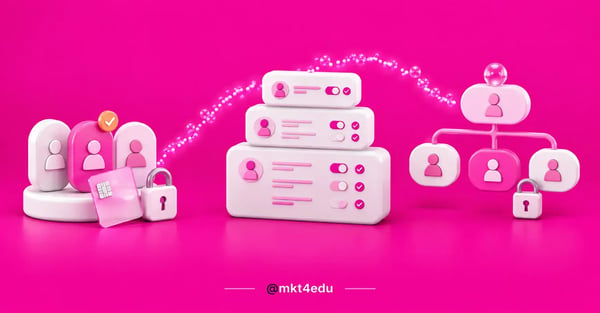 Caption: HubSpot users and permissions are three layers: who gets in, which license they carry and what they can touch
HubSpot documents the process in adding users to the portal, and two practical details only show up once you reach the screen.
The first is the bulk import limit: up to 100 users per CSV file. That means splitting the load into batches, not that there is a cap on users in the account.
The second is that the import does not come only from a spreadsheet. If the account already has an active integration with NetSuite, Microsoft Dynamics 365, Pipedrive, Zoho or Salesforce, users from those systems come in directly.
Before creating the first user, it is worth answering a question the screen does not ask: does this person need to create things or only to look at the result?
The answer defines the seat, and the seat defines the cost.
What are seats in HubSpot and which types exist?
A seat is the license type assigned to a user, and it is what determines which products and features that person has access to.
A permission is a separate layer, applied on top of the seat, that slices what the person does within that access. Confusing the two is the origin of most configuration errors.
HubSpot seats are divided between free and paid, and the seat management documentation describes each one. Here is how it is organized:
|
Seat type |
Cost |
What it enables |
|
View-Only Seat |
Free and unlimited |
View records, dashboards and reports. Does not edit, does not save reports, does not log email |
|
Core Seat |
Paid |
Core functionality of the products the account subscribes to |
|
Sales, Service and Revenue Seat |
Paid |
Full features of the corresponding Hub, in Professional or Enterprise |
|
Partner Seat |
Free |
Full access to the account, for employees of eligible Solutions Partners |
|
Developer Seat |
Free |
Developer platform only. Cannot combine with other seats or with Super Admin |
Table: Seat types according to HubSpot’s official documentation; availability depends on the products and plans the account subscribes to.
Two readings of this comparison change the monthly bill. The first: not everyone in the operation needs a paid seat.
The second reading: Sales, Service and Revenue seats are not generic upgrades, they are access to the advanced features of those Hubs. Buying a Sales Seat for someone who runs email marketing solves nothing.
There is also a behavior that causes confusion during team changes. Reassigning a paid seat does not transfer the permissions with it: the seat changes owner, and permissions continue to be configured user by user.
Which HubSpot seats are free?
Three seats have no cost: the View-Only Seat, free and unlimited, for people who only consult; the Partner Seat, free for employees of eligible HubSpot partners; and the Developer Seat, free and restricted to the developer platform.
The first two solve cases that appear in practically every operation.
The View-Only Seat is free and has no quantity limit. It gives read access to records, dashboards and reports, and it stops at the exact point where action begins: whoever holds that seat does not edit records, does not save a new report and does not log email on a contact.
That is the profile of the director who checks the recruitment dashboard on Monday, the program coordinator who needs to see application volume, the finance lead who reviews the funnel at month-end close. None of them will build a workflow, and all of them usually get quoted as paid licenses.
People who consume numbers do not need a license that produces numbers.
The Developer Seat is free for a different reason: it does not give access to the commercial portal, only to the developer platform.
And it comes with two relevant restrictions: it cannot combine with other seat types and it cannot be associated with Super Admin. Anyone who needs both needs two users.
The third case, the Partner Seat, has enough commercial consequence to deserve its own section.
What are the six permission categories in HubSpot?
Permissions are organized into six categories: CRM, Marketing, Sales, Service, Revenue and Account.
Each one groups a set of tools, and within them you separately define what the user can view, edit, delete, publish and communicate. That is the level at which access governance actually happens.
The user permissions guide details the scope of each category. In practice, they break down like this:
- CRM. Smart CRM objects and tools: contacts, companies, deals, tickets, tasks, lists, imports and properties. It is the most sensitive category, because it decides who can change and delete data.
- Marketing. Forms, emails, landing pages, blog, social media, ads and campaigns. This is where the distinction between creating a draft and publishing lives.
- Sales. Templates, sequences, documents, playbooks, forecasts and Sales Hub prospecting.
- Service. Inbox, knowledge base and Service Hub satisfaction surveys.
- Revenue. The category almost nobody reviews, controlling products, quotes, payments, contracts, invoices and subscriptions. If your operation uses billing inside the platform, an undue permission here does not produce a wrong report, it produces a financial problem.
- Account. Account settings, user management, integrations and billing. It grants power over the portal’s own structure.
One documented subtlety is worth more than any written policy: removing edit permission prevents the user from deleting activities logged on a record. Protection against erasing contact history is a side effect of taking away Edit.
In Enterprise accounts, this work does not have to be repeated person by person. You can create reusable permission sets and apply the same standard to every user in a role.
What can and cannot a HubSpot Super Admin do?
The Super Admin accesses every tool and every account setting, creates and edits users, defines permissions and is the only role authorized to approve the creation and deletion of apps.
There is, however, a limit that surprises people, because the Super Admin does not access paid Sales Hub and Service Hub features without the corresponding seat assigned.
That detail explains a recurring internal support ticket.
The manager is a Super Admin, tries to open an advanced Sales Hub tool and gets blocked. The intuitive conclusion is that the platform is broken, or that the plan does not include that feature.
It is neither hypothesis: the HubSpot Super Admin governs the account, but it does not waive the license.
Full permission over configuration is not the same as a license for the product.
That is why deciding who carries Super Admin deserves criteria. The role needs to exist in enough numbers that the operation does not stall when someone goes on vacation, and be restricted enough that configuration changes stay traceable.
Two people are usually the most stable Super Admin design: one primary owner and one backup.
It is worth mapping in advance the actions that depend exclusively on this role. Turning on privacy settings, authorizing app installation and creating users all stall a timeline when the only person authorized is unavailable.
How do you create teams in HubSpot and control who sees what?
Teams organize users into groups and, above all, define the scope of records each person reaches.
HubSpot works with three levels of record access: all records, their team’s records and only their own records. There is also the option of including or excluding records with no owner assigned.
These levels solve the most common commercial-operations request, which is making a consultant see their own pipeline and not a colleague’s. The create and manage teams documentation describes the configuration, applied object by object:
|
Access level |
Who usually gets it |
Practical effect |
|
All records |
Coordination, management and analysis |
Sees any record of the object |
|
Their team’s records |
Recruitment or regional cell |
Sees what belongs to their own group, not the neighboring one |
|
Their records |
Consultant, agent, SDR |
Sees only what is assigned to them |
|
Unassigned (add-on) |
Teams working an open queue |
Releases unowned records to the group |
Table: Record access levels by team, according to HubSpot documentation; the configuration is set per object and combined with CRM permissions.
The effect that justifies the effort is another one: the team controls visibility in reports and segments, not just in the record list. A deals report seen by a consultant with restricted access shows their reality, with no manual filter and no duplicated dashboard.
Anyone who has configured this several times knows the typical mistake is creating teams that mirror the org chart. A team in HubSpot is not a department, it is a visibility rule. If two areas need to see the same set of records, maybe they should be on the same team.
How do you give your agency HubSpot access without spending a license?
When the agency is an eligible HubSpot Solutions Partner, its employees can receive the Partner Seat, which is free and grants full access to the account.
That means giving your agency HubSpot access does not have to consume any of the client’s paid licenses, contrary to what most budgets assume.
The Partner Seat assignment documentation describes the mechanism for partner and provider employees, and the impact of that is bigger than it first appears.
In a typical implementation, the agency puts three to five people inside the portal: whoever configures, whoever builds automation, whoever handles content, whoever analyzes data.
If each one occupies a paid Core Seat, the bill grows without a single person from the company having gained access.
A license bought for an external consultant is a cost that does not stay with you when the project ends.
One expectation warning is in order: the free seat depends on eligibility. It is not a box any vendor can check. Partner Seat eligibility exists inside HubSpot’s partner program, and verification happens on the partner’s side.
When evaluating proposals, eligibility becomes an objective criterion that is easy to ask about: a HubSpot partner agency working inside the program answers immediately whether its team comes in with a Partner Seat or will ask for a client license.
Regardless of the seat type, three precautions protect the account while the vendor is inside it: named users per person, never a shared login; permissions limited to the contracted scope; and an access review when the contract ends.
Riskier tests, when the subscription allows, should happen in a sandbox environment before touching production.
Which access governance best practices should you apply in HubSpot?
The central guidance from HubSpot’s own documentation is to assign the least privilege necessary for the person to do their job, and expand later if something is missing.
Alongside that, four practices resolve most problems: seats based on real use, permissions restricted by default, care with Edit and access reviews on a fixed cycle.
- Define the seat by the task, not by the job title. The question is what the person does on the platform, not what position they hold on the org chart. A director who only checks a dashboard comes in with a View-Only Seat. An analyst who builds workflows needs a paid seat.
- Start restricted and open up on demand. Least privilege works better in the increasing direction. Whoever starts broad and tries to reduce later meets resistance, because the person has already gotten used to the access.
- Treat Edit as destruction control. Since removing edit permission prevents activity deletion, that checkbox stops being a convenience detail and becomes a history-preservation policy.
- Review access on a fixed cycle. Onboarding is usually handled well; offboarding, almost never. A quarterly calendar for reviewing users, seats and permissions is worth more than any policy document.
This set of decisions is, at bottom, RevOps work: defining who sees what affects the reliability of the data marketing, sales and service use to decide. Access governance is not IT bureaucracy, it is the condition for the number to be trustworthy.
It is worth tying this to training. Most data incidents do not come from bad intent, but from someone who did not know what that button did, and structured team training on the platform reduces the need for restrictive permissions.
Frequently asked questions about HubSpot users and permissions
So how should you structure HubSpot users and permissions?
Start with what is cheapest to fix and most expensive to ignore, splitting the list of people into two columns, who produces and who consults.
Almost the entire second column fits in a free View-Only Seat, and that single separation already adjusts license sizing before any contract negotiation.
Then move down to permissions and teams. Permissions define what the person does, with special attention to Edit, which governs activity deletion, and to the Revenue category, which almost never gets reviewed.
Teams define what the person sees, in the list and in the report. Permissions and teams are layers independent of the seat, and that is where most accounts end up misconfigured.
This is one of the blocks of initial account setup, and one of the few you can resolve in the first week without depending on DNS or another department.
Two points remain that reading an article does not solve. The first is Partner Seat eligibility, verified case by case according to the partner’s standing in HubSpot’s program.
The second point is translating your org chart into permission sets and teams, which requires looking at how the recruitment operation actually works, not how it is drawn on paper.
At that point, one conversation is worth more than a sequence of attempts.
The mkt4edu team works on HubSpot implementation in student recruitment operations and can review your access design with you before you buy licenses, including checking how many of the people you quoted fit in a free seat.



























 Portugal