



.jpg)


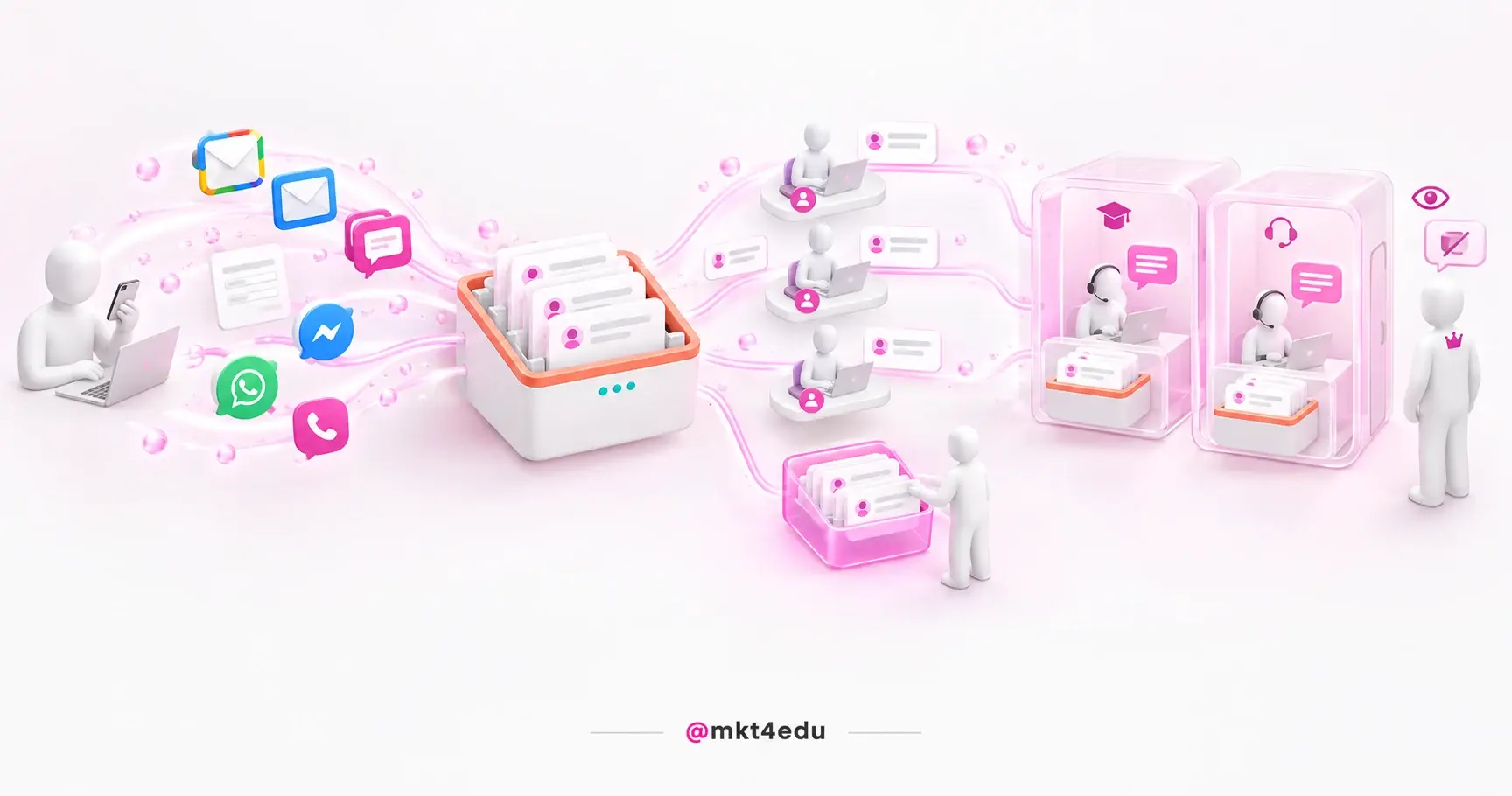
In student recruitment, the candidate does not pick a channel. They email the address on the site, open the chat on the programme page, fill in the form and message on WhatsApp the next day.
On the inside, that becomes four people answering the same person.
The HubSpot conversations inbox exists to solve that specific problem: gathering messages from every connected channel in one place, with an owner, a status and a history tied to the contact record.
It is a prerequisite, not a refinement. And that is where most projects get it wrong: they connect the wrong address, leave routing on automatic and find out weeks later that half the team cannot see the conversation.
What is the HubSpot conversations inbox?
The conversations inbox is the central place in the account where messages from every connected channel appear. Each conversation carries an owner, an open or closed status and a link to the contact record. The tool is available across all products and plans, including the free tools.
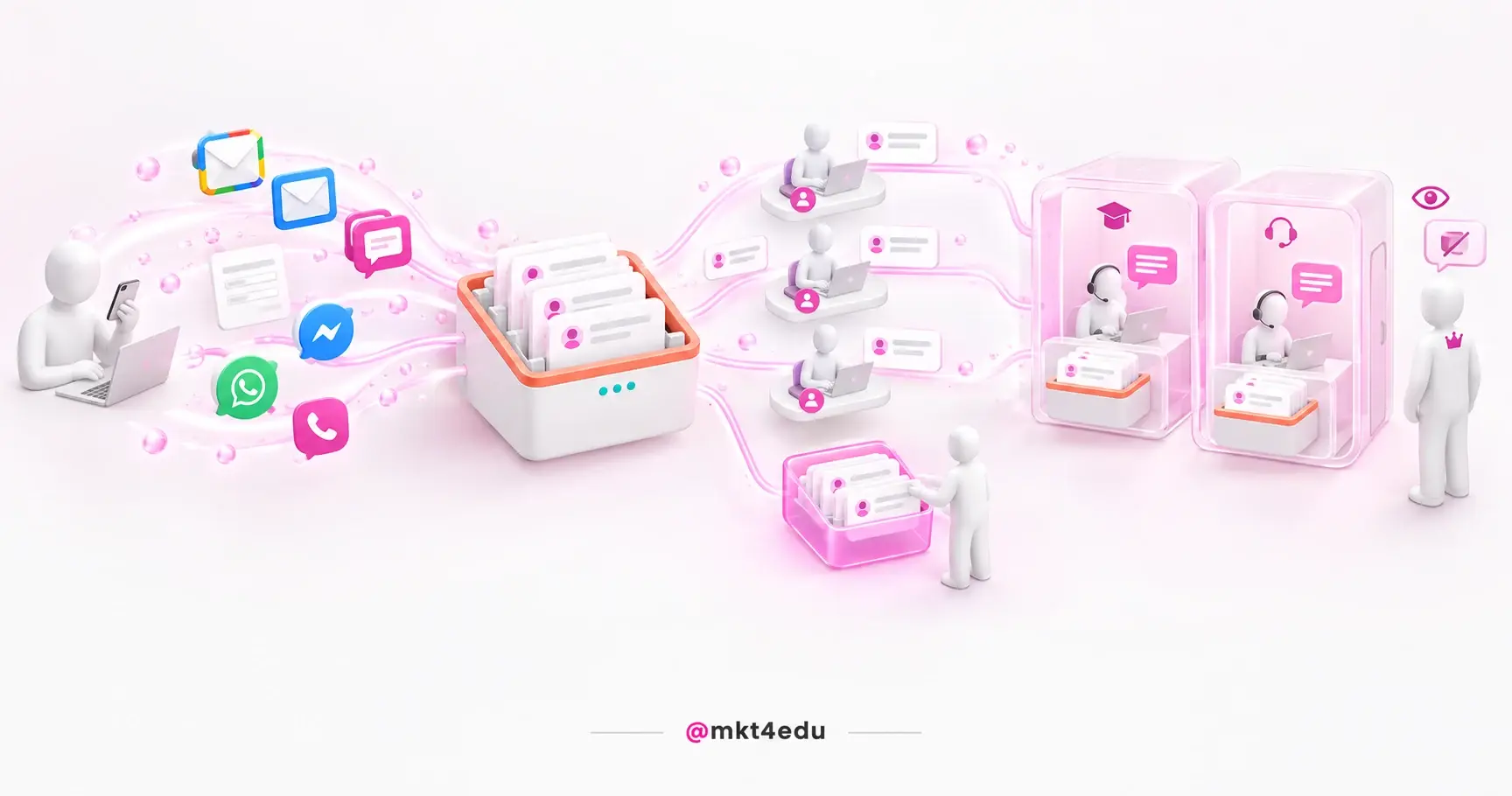 Caption: the conversations inbox pulls every channel into a single queue, with an owner and a status per conversation
The difference that matters is not about the interface, it is about who owns the information. Before centralizing, the answer a counsellor gave a candidate lives in that person's email, and goes out of circulation with them when they take holiday.
After connecting, the message belongs to the contact, and anyone with inbox access opens the full history. That is what makes the operation legible for people working in inbound sales, in the same logic that supports using a CRM in student recruitment.
Video: where the conversations inbox fits inside the HubSpot CRM structure, on the mkt4edu channel (in Portuguese)
The inbox organizes volume through ready-made views: unassigned, assigned to me, all open, by channel, all closed, sent, spam and trash. The most important one is “unassigned”: that is where a forgotten candidate shows up before giving up.
Inside the conversation, the team collaborates through comments with mentions, and that comment is not visible to the contact. It replaces the parallel forwarding that happens outside the tool today.
Which channels connect to the conversations inbox?
There are eight channel types: team email, chat, forms, Facebook Messenger, WhatsApp Business, calling, SMS and custom channels. The first four require no additional subscription. The rest depend on a specific Hub and plan, and it is common to discover that with the project already under way.
Here is how the requirements line up:
|
Channel |
Subscription requirement |
What usually blocks it |
|
Team email |
No additional requirement |
The address can only be used once across the account |
|
Website chat |
No additional requirement |
Without the tracking code, the widget does not appear |
|
Form |
No additional requirement |
In new accounts, the submission becomes a conversation, not a ticket |
|
Facebook Messenger |
No additional requirement |
Requires admin access on the Page |
|
WhatsApp Business |
Marketing Hub or Service Hub Professional or Enterprise |
The number leaves the app and the history does not come along |
|
Calling |
Sales Hub or Service Hub Professional or Enterprise |
Depends on a number enabled on the platform |
|
SMS |
Marketing Hub Professional or Enterprise, with the SMS add-on |
The add-on is purchased separately from the subscription |
|
Custom channels |
Sales Hub or Service Hub Professional or Enterprise |
Covers apps such as Telegram and Slack through integration |
Table: the requirements declared in the channel documentation for the conversations inbox
Two channels on this list deserve attention before they enter the schedule. Website chat depends on infrastructure, not on a subscription: on pages outside HubSpot, the widget does not appear without the tracking code installed before the closing body tag.
Anyone who has not yet validated the tracking code installation connects the channel and sees no chat at all on the page. The channel also requires an associated chatflow, either for live support or for automatic triage through a chatbot.
Video: the chatbot that triages before the conversation reaches the conversations inbox, on the mkt4edu channel (in Portuguese)
The form is the most underrated channel on the list: connected to the inbox, the submission becomes a conversation you can reply to, which shortens the time between an application and an answer on recruitment forms.
Team email or personal email: which one should you connect?
A team email is a shared address that several users access, and every incoming message stays visible to the team. A personal email is individual, used by one person, and serves to send and log one-to-one conversations through the CRM. They are different connections, with different purposes.
Confusing the two is the most common mistake at this stage. The team connects the coordinator's personal email thinking it has centralized support, but that account is accessed only by whoever connected it, and the messages stay invisible to everyone else.
The contrast looks like this:
|
Criterion |
Team email |
Personal email |
|
Type of address |
Shared, such as admissions@ or support@ |
Individual, belonging to the user |
|
Who sees the messages |
The whole team with inbox access |
Only the person who connected the account |
|
What it is for |
Replying in the inbox, with routing and a team signature |
One-to-one email, CRM logging and sequence enrolment |
|
Quantity per user |
One address per inbox, with no reuse in another tool |
More than one individual account per user |
|
Meetings tool |
Does not connect |
Connects |
Table: what changes between a team email and a personal email in the conversations inbox
Three restrictions settle the decision and have no workaround. First: the same address cannot be personal and team at the same time, so the coordinator's address, once it becomes a team channel, stops serving individual use.
Second: a team address connected to the conversations tool does not connect to the meetings tool, which is worth checking before committing an address already published in your scheduling links.
Third: a team address can only be used once. Connecting the same address to help desk and to the inbox returns an error.
In practice, that means reserving addresses by function before you start: one for recruitment, another for support, none with a person's name.
What happens to your existing email when you connect the channel?
Nothing that arrived before is imported. The documentation is direct: emails received before the connection do not appear in the inbox. The inbox starts empty and fills only with what arrives afterwards, which changes how you plan the switchover.
This is the information nobody shares before the status meeting. The team connects the address on Wednesday, opens the inbox and finds a clean screen, with the whole week's pending items still sitting in the old email client.
The way out is operational: keep the old client open until the pending items are closed, and treat the connection date as a cut-off declared to the team.
The connection accepts Gmail, Office 365 or another email account. When the address is not hosted at Google or Microsoft, HubSpot generates a forwarding address of its own that the original provider then forwards messages to. Five details of that path tend to create rework:
- Forwarding is configured manually at the source provider: the platform instructs, but connects nothing on its own
- The forwarding address can be customized during setup, but not after the step is finished
- The contact association uses the original sender, not the address that forwarded the message
- Each incoming email is capped at 40 MB counting body, headers and attachments, which matters where documents arrive as attachments
- Each hosted address needs its own from name: the same name cannot serve two addresses
How do assignment and routing rules work?
Assignment defines who becomes responsible for each incoming conversation. It can be manual, through the owner menu at the top of the conversation, or automatic, through a rule configured on each channel. The automatic rule carries one condition that decides the whole shape of the team.
The documentation leaves no room: incoming conversations can only be automatically assigned to users with a paid seat, and free users can still assign and reply to unassigned conversations, as long as they have inbox access.
A user without a paid seat is not excluded from the operation, they are excluded from distribution: they receive no conversation through an automatic rule, but they open the unassigned queue and pull the conversation to themselves.
The seat decision therefore comes before the routing decision, and it enters the budget together with the choice of users and permissions in the account.
The rules accept three destinations:
- Specific users and teams, with the conversation distributed among those selected
- Contact owner, which requires the contact to already have an assigned owner and to be identified by cookie
- An AI customer agent, which answers first and hands the conversation to a person when it cannot resolve it
The second destination is elegant and fragile: it keeps the relationship continuous, but it depends on two simultaneous conditions, and when one fails the conversation lands as unassigned.
There is also an availability control, which either delivers only to available agents or distributes regardless. The second option, in a small team, is a recipe for a conversation parked with someone who is off.
In chat, distribution gains methods of its own: load balancing, rotation or random.
Even with the automatic rule switched on, the unassigned queue needs an owner, because that is where the candidate no rule reached shows up.
Who can see and reply to each conversation in the inbox?
Access is defined per inbox, with two options: available to all users in the account, or restricted to selected users and teams. The choice applies to the whole inbox, not per channel, and it determines whether the sales team sees a student support conversation.
The exception deserves attention because it runs against intuition. Users with account permissions or Super Admin can view any conversations inbox, but they cannot act in it, such as replying to a thread, unless they are selected in that inbox's access settings. Replying to one-to-one emails from the contact record stays available.
In other words: being a Super Admin grants reading, not voice.
Separating inboxes is the natural path when distinct functions should not cross, but creating more than one inbox requires a Professional or Enterprise subscription, and moving conversations between inboxes depends on the same requirement.
Seeing which colleagues are active in a conversation, with an avatar and a typing indicator, requires a Service Seat. That is what prevents two people writing the same answer at the same time, with slightly different information.
When should you use help desk instead of the conversations inbox?
They are two tools with the same origin and distinct purposes. The inbox organizes conversations; help desk organizes tickets and requires Service Hub Professional or Enterprise. When a request has a deadline and a resolution cycle, a ticket describes the work better.
One platform rule makes the choice less free than it looks: accounts created after 1 April 2024 cannot create tickets from the form channel connected to the inbox.
A direct comparison helps you decide:
|
Criterion |
Conversations inbox |
Help desk |
|
Unit of work |
Conversation |
Ticket |
|
Subscription |
All products and plans |
Service Hub Professional or Enterprise |
|
Accepted channels |
Email, chat, form, Messenger, WhatsApp, calling, SMS and custom |
Email, chat, form, Messenger, WhatsApp, calling and custom |
|
Deadline and priority |
Open or closed status |
SLA targets, custom views and prioritization |
|
Seat for advanced features |
Sales Seat or Service Seat for automatic routing |
Service Seat for SLAs and custom views |
Table: the conversations inbox and help desk side by side, by unit of work and subscription requirement
The same email address cannot be connected to both tools at the same time.
For an education institution, the practical criterion is the moment in the journey. A candidate conversation lives better in the inbox; a request from an enrolled student has a deadline and a formal owner, and that is where tickets organize support.
Migration is possible, and historical conversations can come along when the channel is connected to help desk. Possible does not mean painless, because changing later costs retraining and rebuilt rules.
How do you set up the conversations inbox in HubSpot?
Setup happens in the settings icon, under Inbox & Help Desk, in the Inboxes section. There you define the inbox name, the access, the connected channels, the address and from name, the signature and the assignment rules. The order between the steps matters more than any single one of them.
The sequence that avoids rework has six steps:
- Define which shared addresses exist and which function each one belongs to
- Decide whether the operation needs one inbox or several, checking the plan requirement
- Configure access before connecting a channel, because access defines who sees what comes in
- Connect the team email first, the channel that supports the rest
- Define the assignment rule together with the list of who holds a paid seat
- Only then switch on chat, forms and the plan-specific channels
One settings item confuses newcomers: the fallback email, an address provisioned by HubSpot itself to unlock features such as ticket automation while no team email is connected. It does not replace the channel, it is scaffolding and not structure.
In implementation projects, the most common mistake at this stage is not technical: it is connecting the channel before agreeing who answers what. The inbox receives everything, nobody takes the queue, and the result is worse than before.
In the schedule, this setup comes after the tracking code and before the conversation channels, in the same dependency logic that organizes the order of the implementation phases.
Frequently asked questions about the HubSpot conversations inbox
So where should you start with the conversations inbox?
Start with the address, not with the tool. The question that unlocks the whole setup is which shared address the institution wants the candidate to use, and who, by name, answers for it. Without that, the inbox reproduces the old mess with a new interface.
Three decisions follow from that first one, and none of them is technical. Which addresses exist by function, not by person. Who holds a paid seat and enters automatic distribution. And whether the demand arriving is a conversation or a ticket.
With those three settled, setup takes an afternoon. Unsettled, it takes the whole project and comes back as rework in the first week of enrolment. And it is worth remembering what is at stake: the inbox is the front door for conversations in the HubSpot CRM, and it is that link to the contact record that turns a loose message into a relationship history.
With the inbox standing, the next channel in the queue is usually WhatsApp, and it is worth knowing what changes when the number is run by the platform before committing the number the team uses every day.
























 Portugal