



.jpg)


There is a kind of CRM (Customer Relationship Management) failure that shows up in no configuration report. The account is spotless: users created, tracking validated, forms published, automations running. And the team still keeps a spreadsheet open in another tab.
The reason is rarely resistance. The rep opens the applicant's record during a call, looks for the program of interest and does not find it. Customizing records in HubSpot is the adjustment that fixes this, and it tends to be treated as a cosmetic detail when it is what decides whether the tool gets used.
Anyone who has watched an implementation up close knows the scene: the field exists, the data was captured, the information is there. It just is not visible where someone needs it.
Why does customizing records in HubSpot decide CRM adoption?
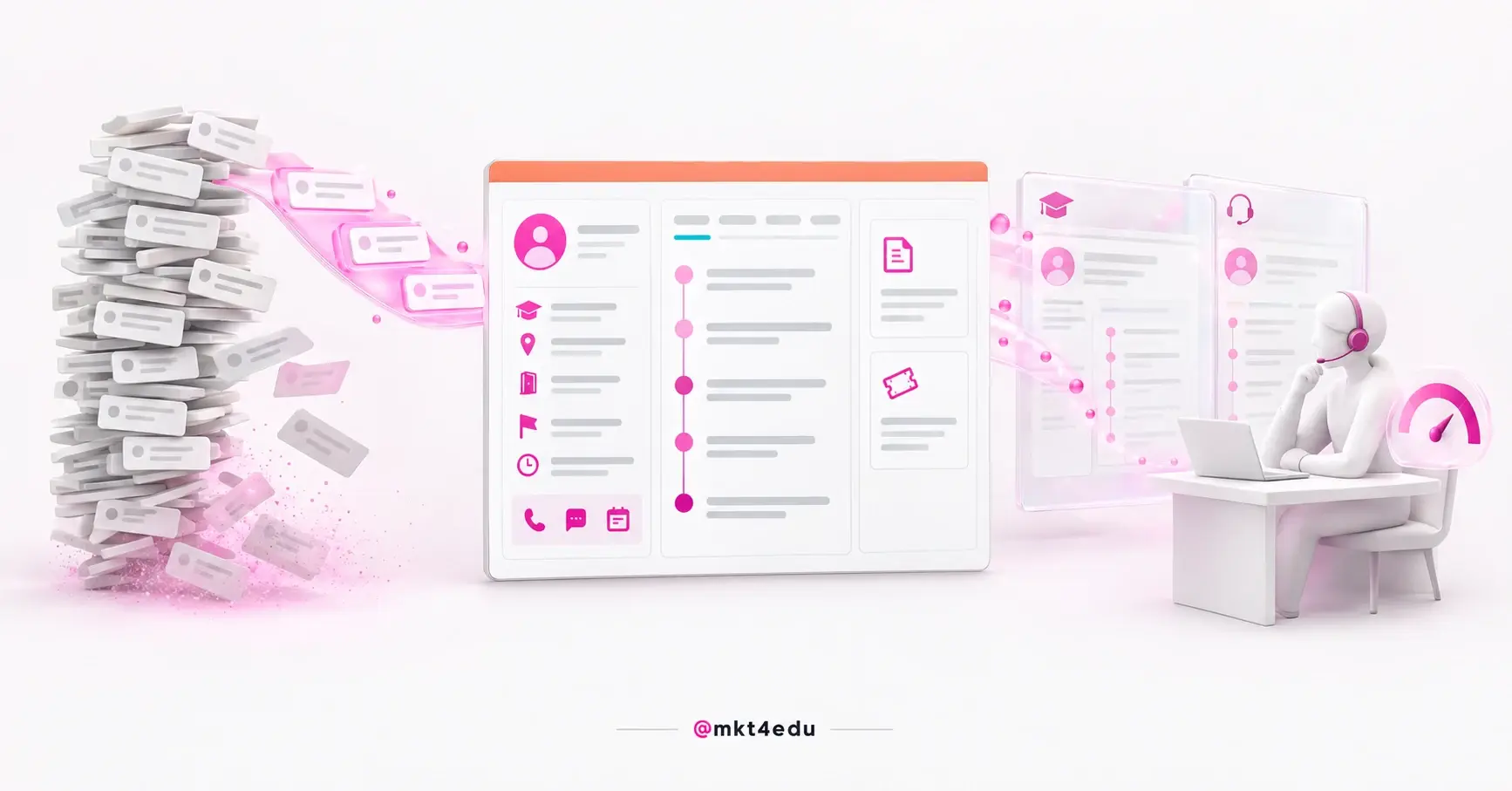
Because the record is the only screen the support team actually uses. Dashboards and reports are management tools. Someone on the phone with an applicant opens a record, looks at the left sidebar and decides what to say. If the answer is not there, the platform has lost to the spreadsheet.
 Caption: to customize records in HubSpot is to decide what the record answers in the first seconds of a conversation
CRM adoption is not won in training. It is won in the first week of use, when someone tests the tool against the old habit and measures which of the two answers faster. A spreadsheet with six right columns beats a complete CRM with the information hidden behind three clicks.
Technical configuration delivers a correct platform. Customization delivers a usable one.
It is worth remembering what a CRM sets out to do at an institution: centralize the relationship with the applicant so anyone on the team can pick the conversation up where it stopped. That only happens if the record shows what the conversation requires.
In implementation projects, the most reliable symptom of a badly configured record is the repeated question: the applicant states the program on the form and the rep asks again on the phone.
Where are the settings to customize a contact record?
The path is the same for every object. Click the settings icon in the top bar, go to Data Management, click Objects, select the object in the dropdown and open the Record Customization tab. Inside it, choose the default view or a team view.
Permission matters more than the path. The documentation is explicit: Customize record page layout or Super Admin permissions are required to customize a record's default layout. Without them the menu does not appear, and people often conclude the account lacks the feature when what is missing is access.
This is one reason why defining users and permissions in HubSpot comes before customization. Whoever designs the record needs access to design it.
There is a second, individual layer that does not go through settings. On the record itself, the sidebar property card has an Actions menu with the option to customize properties, and the documentation warns that those changes apply only to your own view.
The same rule applies to reordering cards: when a user changes properties or order, it affects only their screen.
Two layers, then. The admin layer, which sets the operation's standard, and the user layer, which adjusts their own screen within what the admin allowed.
What is the difference between the sidebar and the middle column?
The record has three areas and each answers a different question. The left sidebar answers who this contact is. The middle column answers what happened and what needs to happen. The right sidebar answers what this record is associated with, showing companies, deals and attachments.
Confusing the three is the most common structural mistake. When someone drops activity history into the sidebar, it stops being an identity card and becomes a second timeline. When someone stacks registration data in the middle column, the space meant to show movement starts showing a static form.
Each area also has its own technical limits, and knowing them changes how you plan:
|
Record area |
The question it answers |
Documented limit |
|
Left sidebar |
Who this person is and what we already know |
Up to 50 properties per property list card |
|
Middle column |
What happened and what needs to happen now |
Up to 24 properties per property list card and a maximum of 5 tabs, including Overview |
|
Right sidebar |
What this record is associated with |
Up to 12 properties and 5 quick filters per association table card |
|
The three areas combined |
How many blocks fit on the whole record |
Up to 50 cards across the left sidebar, middle column and right sidebar |
Table: limits HubSpot documents for anyone about to customize records in HubSpot
The five-tab ceiling in the middle column is the limit that changes the most decisions. Since the Activities tab cannot be edited or deleted, four positions are left for everything else, Overview included.
The card limit is worth a second look: the documentation says up to 50 cards across the three areas, not 50 per area. The card library also goes well beyond property lists, with activity totals, stage trackers, property history, quick actions and embedded reports, among other formats.
In student recruitment, the quick actions card usually pays off more than any dashboard: it puts call, message and schedule one click away, without taking the person off the record.
How do you choose which contact properties to show in HubSpot?
The criterion is operational, not hierarchical. Show in the sidebar the properties that answer the questions of the first five seconds of a contact, the ones someone needs to read before speaking on a call. Everything else stays accessible through the full property list, without taking up screen space.
Run the test with the team, not with the board. Sit next to whoever handles calls, ask them to open a record and narrate out loud what they look for. It is usually four to six pieces of information, and they rarely match the list the manager imagined.
In a recruitment operation, those questions usually organize themselves like this:
|
Question in the first seconds |
Property that answers it |
Where to show it |
|
Which program does this person want? |
Program of interest (custom) |
Top of the left sidebar |
|
Which campus or site? |
Campus or site (custom) |
Left sidebar |
|
Through which admission route? |
Admission route (custom) |
Left sidebar |
|
Where in the lifecycle are they? |
Lifecycle stage and lead status (default) |
Left sidebar |
|
Where did the application come from? |
Original source and recent conversion (default) |
Property card in the middle column |
|
Has anyone spoken to them? |
Last activity and owner (default) |
Middle column, next to the timeline |
Table: reference layout when you customize records in HubSpot for a recruitment operation
Notice the pattern: the first four answers depend on custom properties and the last two have been in the account since day one. A record with only native fields looks generic; a record with only custom fields loses the source trail.
A property nobody fills in does not deserve screen space. Before deciding, export the object's property sheet, which brings name, type, group, creator, usage and fill rate for each one.
Video: the lead nurturing that consumes the fields you pick when you customize records in HubSpot, on the mkt4edu channel (in Portuguese)
What is the difference between default and custom properties in HubSpot?
Default properties are the fields HubSpot creates in every account, such as name, email, lifecycle stage and create date. Custom properties are the ones the institution creates to hold what is specific to its business, such as program of interest, shift and admission route.
The practical difference shows up when you try to change them. Some default properties cannot be edited, and the documentation advises creating a custom property instead of adapting the native one. Others never leave the record: when the remove icon appears greyed out, it is a default property of the account.
Creating a new field is easy, which is why the number grows without control. The path is the settings icon, Properties, select the object and the create property button.
The custom property limit varies by subscription, and the platform shows current usage against the plan ceiling in the data model limits section, under Properties and Custom Properties.
On deletion, there is a window that prevents permanent regret. Archived properties can be restored, but those archived 90 days ago or more have already been deleted and do not come back. Permanent deletion requires Super Admin.
Property groups are the organizers almost nobody uses. They do not change what appears on the record, but they determine how the full list is displayed when someone clicks to see everything.
How do you show different records to different teams?
Through team views and conditional display logic. A team view creates a record layout of its own for a team, and the documentation is direct: the view is displayed only to users who are main team members of the selected team. A Professional or Enterprise subscription is required.
This solves a real operational conflict. The undergraduate team needs to see program, campus and admission route. The graduate team needs previous education and field of work. The team serving enrolled students needs enrollment and financial status. That is three records of the same object.
Without team views, the result tends to be the sum of every field on one screen, which is exactly the scenario that makes useful information disappear.
Conditional logic works on another layer, inside a single view. Cards and tabs accept display criteria based on a property, and the documentation records that setting conditional display logic requires a Starter, Professional or Enterprise subscription.
There is a third mechanism, often confused with that one. In conditional property options, a controlling property limits the options available in a dependent property, such as a program list that changes with the campus selected.
Two caveats matter. The feature applies only to enumeration properties, such as dropdowns and checkboxes, and the most frustrating part is that conditional options work in manual record creation, in editing an individual record, in the sales extension and in playbooks, but they are not supported in forms.
Does what appears on the contact card depend on the form?
It does, and that is the relationship that closes the loop. Every form field in HubSpot maps to a CRM property, and the value the visitor submits populates exactly that property on the record. The record only shows what some source filled in, and the form is the main source.
An empty record is rarely a record problem. If the contact card shows program of interest blank in eight out of ten records, the customization is right and it is capture that never asks. The right fix is in the form, not in the layout.
The reverse also happens, and it is quieter. The form collects data that is never displayed, the team believes the information does not exist and calls to ask again, which erodes the experience of someone who already answered.
Video: the lead capture that feeds the fields you display when you customize records in HubSpot, on the mkt4edu channel (in Portuguese)
One technical restriction matters when designing that bridge: score, calculation, rich text and HubSpot user properties cannot be used as form fields. They can appear on the record, but they are fed by other mechanisms.
There is a third data entry point, which is manual record creation. The creation panel is configurable under Objects, and in it some default properties cannot be removed, such as first name, last name and email for contacts.
Three surfaces need to agree: what the form captures, what the creation panel requires and what the record displays. When the three diverge, the result is a field created, captured and invisible.
That coherence supports what comes next. Without a filled property there is no consistent lead segmentation, and AI-powered lead qualification works on those same fields.
Which mistakes most compromise record customization?
The mistakes cluster at two opposite extremes and a third that is lack of maintenance. Either the account has dozens of custom properties and none displayed on the record, or the record displays everything and the useful information gets lost in the middle. The third is building it once and never reviewing it.
- Creating a property and not displaying it: the most frequent case in freshly implemented accounts. The field was created, the form captures it, the data comes in and the sidebar keeps the factory layout.
- Displaying everything: with up to 50 properties allowed in a sidebar property list card, you can stack fifty fields. The team scrolls and gives up, or reads the wrong field.
- Treating the middle column as an archive: it accepts 24 properties per property list card, which tempts the admin to turn Overview into a second registration form. It works better as an action panel.
- Ignoring teams: keeping a single view for teams with different needs forces each one to live with the other's fields, and wastes the feature that solves exactly that problem.
- Not reviewing after the first semester: programs come and go, admission routes change, and each property's fill rate is the best indicator that it is time to rework the record.
- Customizing without listening to the people who use it: a layout designed by someone who never takes a call prioritizes what the report needs, not what the call needs.
It is worth remembering that managerial reading of the data happens somewhere else. Tracking dashboards live in the platform's analytics layer, and using the record as a substitute for that overloads the screen of the people who operate it.
Frequently asked questions about customizing records in HubSpot
So, is it worth customizing records in HubSpot?
It is, and the return shows up fast because the effort is small next to the effect. Customizing records in HubSpot requires no development, depends on no integration and, in most cases, depends on no subscription change. It requires a conversation with the people who take calls and an afternoon of configuration.
What is at stake is not visual tidiness. It is whether the tool gets used. A CRM that answers the right question in five seconds beats the old habit with no internal policy required. A CRM that forces you to search loses, even when it is technically correct.
If you are starting now, start with the opposite of what feels intuitive: do not open the settings. Open a real record next to whoever takes the calls and write down the four questions they ask first.
After that, look back. If any of those fields comes up empty on most records, the problem has moved and is now about capture, not display.
That is why fixing the record almost always leads to fixing the data source, and the source, in educational marketing, is the form. Reviewing how HubSpot forms capture leads is the natural next step for anyone who has just decided what the record needs to show.


























 Portugal